
Moving logs from Vanilla / Rising
TIP
Using the web client in your browser instead of a desktop install? Its logs live in browser storage, not on disk. See Importing from the F-Chat web client for how to pull those into a Horizon export with the F-Porter userscript.
Folder locations
By default, F-Chat 3.0 and Rising store their data in the following folders:
| Operating System | Data Path |
|---|---|
| Windows | %AppData%\fchat |
| MacOS | ~/Library/Application Support/fchat |
| Linux | ~/.config/fchat |
By default, Horizon stores its data in the following folders:
| Operating System | Data Path |
|---|---|
| Windows | %AppData%\horizon-electron |
| MacOS | ~/Library/Application Support/horizon-electron |
| Linux | ~/.config/horizon-electron |
Portable copies of Horizon use the horizon-data folder next to the app instead.
These folders might be hidden by default, so you may need to enable a setting to display hidden folders in your file explorer.
INFO
On Windows, you can easily go to your user's AppData folder by typing %AppData% (percent signs included) in File Explorer's address bar.
How to move your logs
Currently, there's two ways of moving your logs over: using the built-in importer, or manually copying the log files. The importer requires less work from you and is our recommended way of doing it.
With the Importer (Recommended)
Horizon will automatically prompt you to import your data when you first launch it, if it detects compatible Vanilla client data. However, to do it manually:
- Open the menu (the ☰ icon in the top-left) and go to
Horizon → Manage Data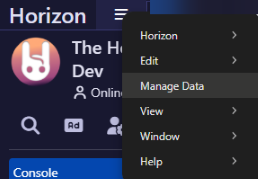
- (On Mac, you'll need to click the
Horizonmenu bar item instead)
- (On Mac, you'll need to click the
- Select the "Import from Vanilla" tab
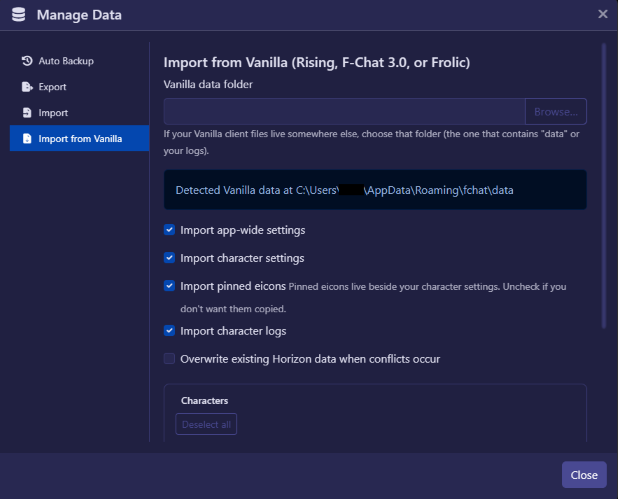
- (Optional) If Horizon can't find your Vanilla data automatically, click "Browse…" to manually select the folder
- Choose which data to import:
- App-wide settings
- Character settings
- Pinned eicons
- Character logs
- Check "Overwrite existing Horizon data when conflicts occur" if you want to replace existing data, otherwise new data will be merged
- Select which characters to include
- Click "Import selected data" to complete the import
Manually
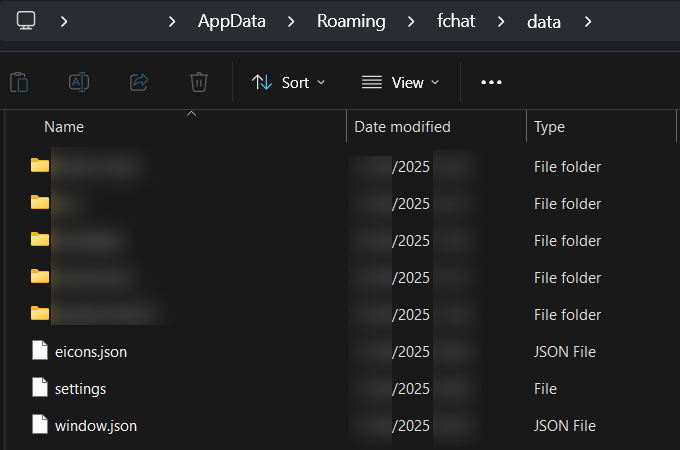
Inside the fchat folder there should be a folder called data, here you should see folders for all your characters' logs:
INFO
Though this screenshot is from Windows, the process should be the same for other platforms too. Just mind the different folder names in the tables above.
INFO
No character folders in the F-chat data folder? Check that you haven't changed the log save location in the settings: ⚙️ > F-Chat > Change log location.
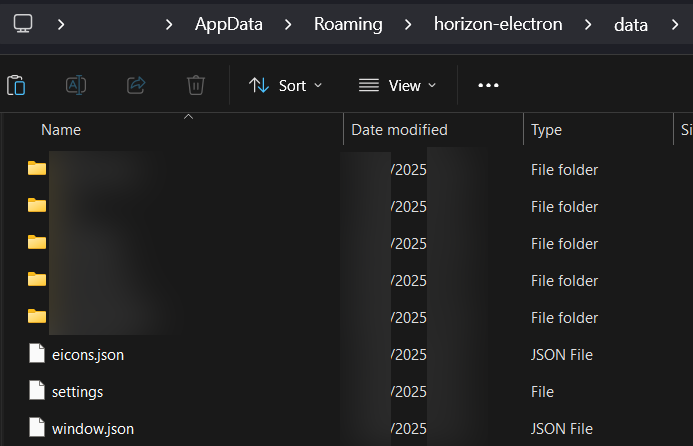
Horizon uses the same kind of folder structure, so if you have already started the app once, inside the horizon-electron folder you should also find a data folder. You can simply copy the folders for your characters from Rising's data folder into Horizon's data folder, and if you restart Horizon it should load the logs like usual.
WARNING
Please don't copy over files like eicons.json, window.json or settings. The formats they're in might not be compatible with current versions of Horizon and could break things.