Installing Horizon
The installer for your platform of choice can be downloaded from the download page, where you'll find packages for every platform and architecture. Older versions are available on the GitHub releases page.
Hopping over from Rising? Check out this guide on migrating your data.
Windows
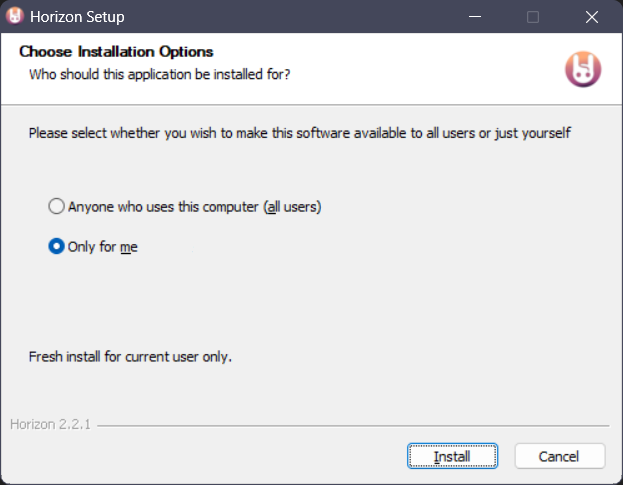
On Window, simply running the downloaded installer .exe file should be enough. Following the instructions, Horizon can either be installed globally, or for your specific user only (recommended).
On an ARM device like a Microsoft Surface? A native ARM version should be available for you too.
Linux
Supported distros
| Distro | Info | Maintainer(s) |
|---|---|---|
 | link | @CodingWithAnxiety |
  |  | astrayblackcat, KenwoodFox, @CodingWithAnxiety |
  | Available under releases | The Horizon Developers |
  | Available under releases | The Horizon Developers |
 | link | @akatsukilevi |
 | Flake Below | The Horizon Developers |
Additional installation instructions
Debian/Ubuntu (deb)
- Download the
.debfile for your architecture from the latest release. Look forF-Chat.Horizon-*-linux-amd64.deb(x64) orF-Chat.Horizon-*-linux-arm64.deb(arm64). - Install (replace "
<arch>" with the architecture from the downloaded filename):bashsudo dpkg -i F-Chat.Horizon-linux-<arch>.deb
Fedora/RPM-based (rpm)
- Download the
.rpmfile for your architecture from the latest release. Look forF-Chat.Horizon-*-linux-x86_64.rpm(x64) orF-Chat.Horizon-*-linux-aarch64.rpm(arm64). - Install using your package manager (replace "
<arch>" with the architecture from the downloaded filename):- Fedora/RHEL/CentOS:bash
sudo dnf install F-Chat.Horizon-linux-<arch>.rpm - openSUSE:bash
sudo zypper install F-Chat.Horizon-linux-<arch>.rpm - Generic RPM:bash
sudo rpm -i F-Chat.Horizon-linux-<arch>.rpm
- Fedora/RHEL/CentOS:
NixOS
Horizon is available as a Nix Flake input based on the GitHub repo. See this page for more information.
    horizon = {
      url = "github:Fchat-Horizon/Horizon?ref=main";
      inputs.nixpkgs.follows = "nixpkgs-unstable";
    };
You can then reference this input as a System Package or user-specific package:
      environment.systemPackages = [
        inputs.horizon.packages.\${pkgs.system}.horizon-electron
      ];
Our repository's default branch is development, which is not strictly guaranteed to build (nor is it expected to!), so note the ?ref=main after the Git URL, which is what we use for stable releases. If you want to follow the beta update track, or use nightly builds, replace main with beta or development respectively in the ?ref=<source> URL parameter for the Flake input.
AppImage
- Download the AppImage for your architecture from the latest release. Look for
F-Chat.Horizon-*-linux-x86_64.AppImage(x64) orF-Chat.Horizon-*-linux-arm64.AppImage(arm64). - Make it executable, then run (replace "
<arch>" with the architecture from the downloaded filename):bashchmod +x F-Chat.Horizon-linux-<arch>.AppImage ./F-Chat.Horizon-linux-<arch>.AppImage
Tarball (tar.gz)
- Download the
.tar.gzfor your architecture from the latest release. Look forF-Chat.Horizon-*-linux-x64.tar.gz(x64) orF-Chat.Horizon-*-linux-arm64.tar.gz(arm64). - Extract and run (replace "
<version>" and "<arch>" with the values from the downloaded filename):bashtar -xzf F-Chat.Horizon-<version>-linux-<arch>.tar.gz cd F-Chat.Horizon-<version>-linux-<arch> ./horizon-electron
Arch-based (AUR)
NOTE
The AUR package currently doesn't support ARM.
NOTE
The AUR package is not directly maintained by the Horizon team. If you have any issues with it, please check if they can be reproduced in an official build first before reporting them.
- With an AUR helper:bash
yay|paru|etc -S fchat-horizon-bin - Manually:bash
git clone https://aur.archlinux.org/fchat-horizon-bin.git
cd fchat-horizon-bin
makepkg -si
Portable
Starting with version 2.4.2, Horizon is also available as a portable build for Windows and Linux. A portable copy keeps its settings, logs, caches and backups in a horizon-data folder next to the app instead of your user profile, so you can run it from a USB stick or move it between computers by copying a single folder.
NOTE
Portable builds aren't available for macOS.
Windows
- Download
F-Chat.Horizon-*-win-x64-portable.zip(x64) orF-Chat.Horizon-*-win-arm64-portable.zip(arm64) from the download page or the releases page. - Create a new folder wherever you want Horizon to live, and extract the zip into it. The zip doesn't contain a top-level folder of its own.
- Run
Horizon.exe.
Linux
- Download
F-Chat.Horizon-*-linux-x86_64-portable.tar.gz(x64) orF-Chat.Horizon-*-linux-arm64-portable.tar.gz(arm64) from the download page or the releases page. - Extract it, which creates a
Horizonfolder containing the AppImage and itshorizon-datafolder, then run the AppImage:bashtar -xzf F-Chat.Horizon-*-linux-<arch>-portable.tar.gz cd Horizon ./F-Chat.Horizon-*.AppImage
WARNING
If you use AppImageLauncher, it may offer to move the AppImage into your Applications folder on first launch. Decline, or Horizon will lose track of its horizon-data folder and start in normal mode.
How portable mode works
Horizon checks for a folder named horizon-data next to the app when it starts. If it finds one, it runs in portable mode. If you delete or rename that folder, the next launch uses the normal data location from this table instead.
A fresh portable copy starts empty. Unlike a normal install, it won't offer to import F-Chat or Rising data on first launch, so the chat data on whichever computer you plug into doesn't end up on your USB stick by accident. To bring logs over yourself, use the exporter and importer.
If your log folder is inside horizon-data (the default), Horizon stores its location as a relative path, so it keeps working when the drive letter or mount point changes.
Updating
- Linux: the portable AppImage updates itself like the regular AppImage does.
- Windows: portable copies don't update automatically. Download the new zip, extract it to a new folder, then move your
horizon-datafolder into it, replacing the one that comes with the zip.
Known limitations
A few files are still written outside the horizon-data folder:
- Temporary files used while syncing
- The AppImage updater's download cache in
~/.cache(Linux) ~/.pki/nssdb, which Chromium creates on Linux
From Source
If you want to compile and install Horizon from the source code yourself, please see the build and packaging instructions in the contributing document.
MacOS
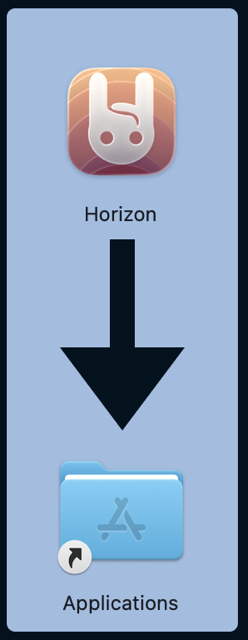
On macOS, installing or updating is as simple as opening the downloaded .dmg file and dragging the app icon into the Applications folder.